Post-Purchase Surveys for B2B and Wholesale Shopify Stores
Run a post-purchase survey on your B2B or wholesale Shopify store. What to ask buyers after checkout, how to use the answers, and how to set it up.

You can see what your wholesale buyers order. What you can't see is how they found you, what else they'd stock if you carried it, or whether they'd rather hear from a sales rep or an email. A post-purchase survey asks them right after they place an order, when they're most willing to answer.
Most advice about post-purchase surveys is written for direct-to-consumer stores. Wholesale works differently, and in a few ways it works better. This post covers why, what to ask your buyers, what to do with the answers, and how to set up a survey on your Shopify store.
What a post-purchase survey is
A post-purchase survey is a short set of questions that a customer sees after checkout. On Shopify, it usually shows on the Thank you page, the page customers land on right after they place an order. One or two questions is typical. The classic is "How did you hear about us?"
Why wholesale stores get better survey data
Survey apps built for direct-to-consumer stores mostly answer one question: which ads are working. They're designed for one-time shoppers checking out as guests, and each answer gets counted in a report.
Wholesale buyers are different in three ways that matter:
- They sign in. B2B buyers usually need an account to see wholesale pricing, so you already know who's answering.
- They come back. A buyer who reorders every month is worth knowing well, and you only need to ask each question once.
- They're worth a conversation. An answer like "I'd stock your gift sets" is something a sales rep can act on.
So instead of counting answers in a report, you can keep each answer on the buyer's customer record, next to their order history and contact details. That's where your team will look for it.
What to ask wholesale buyers
Pick one or two questions. Shorter surveys get more answers, and you can always ask something else later. Here are some that work well for wholesale:
- How did you hear about us? Add options like a trade show, a sales rep, a referral from another retailer, or search.
- What kind of business are you? A boutique, a salon, a distributor, an online-only store.
- What else would you like us to carry?
- How often do you expect to reorder?
- How do you prefer we contact you about new products?
- Do you sell online, in a physical store, or both?
Give buyers a list of answers to pick from, like a dropdown, instead of a blank text box. A list is faster to answer and much easier to sort later. Add an "Other" option with a short text box for anything you didn't think of.
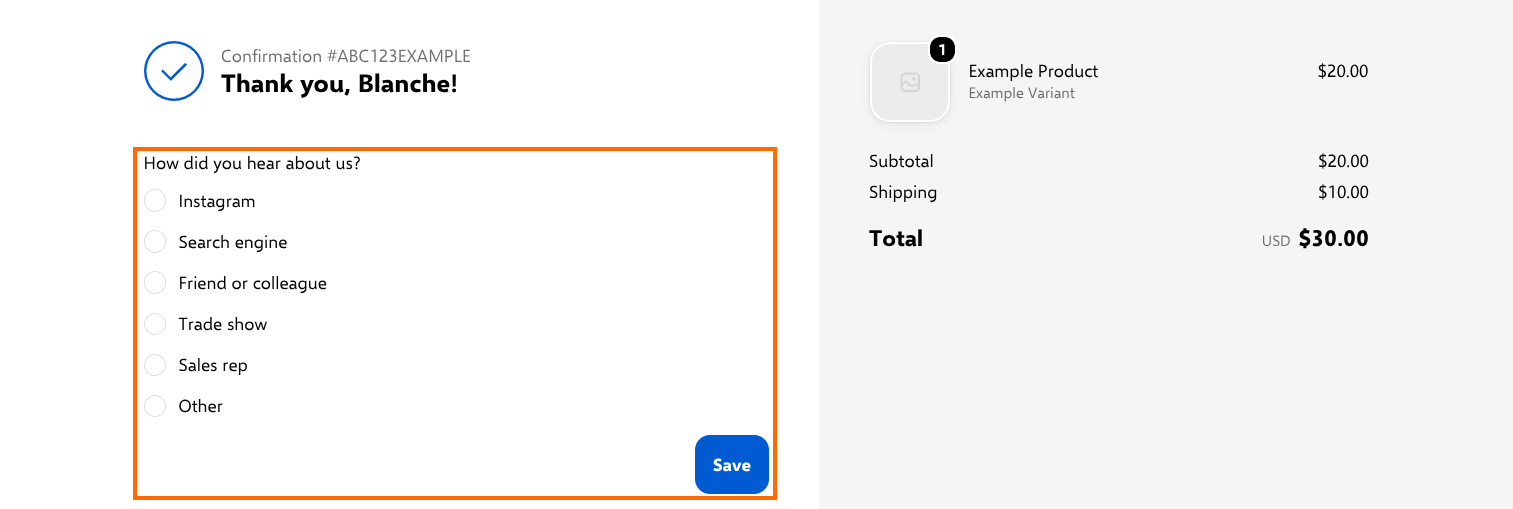
Example survey in Shopify's checkout editor preview, with sample data.
Turn answers into action
A survey only pays off if the answers reach the people who can use them. Here's what you can do once they're saved on each buyer's customer record:
- Tag buyers by their answer with a form rule (for example, add the tag "source-trade-show" when a buyer picks "Trade show"), so you can filter customers in your Shopify admin or build segments from the tag.
- Filter your customer list by an answer, or export it to a spreadsheet for your sales team.
- Use Shopify Flow to send your team an email when a buyer says they'd like to hear from a sales rep.
- Use the tag in any email tool that syncs Shopify customer tags.
If you're new to tags, see how to automate customer tags in Shopify.
Set up a post-purchase survey on Shopify
Shopify doesn't include a survey on the Thank you page. You need an app that adds one. Customer Fields adds a Post-checkout form block to the Thank you page, using a form you build in the app. Answers save to the customer's metafields in Shopify, the same as any other Customer Fields form.
Here's the setup at a glance:
- In Customer Fields, create an Account/Checkout form.
- Add a Dropdown field with your survey question, then save the form.
- Copy the form's 6-character form ID.
- In your Shopify admin, go to Settings > Checkout and click Edit on your checkout configuration.
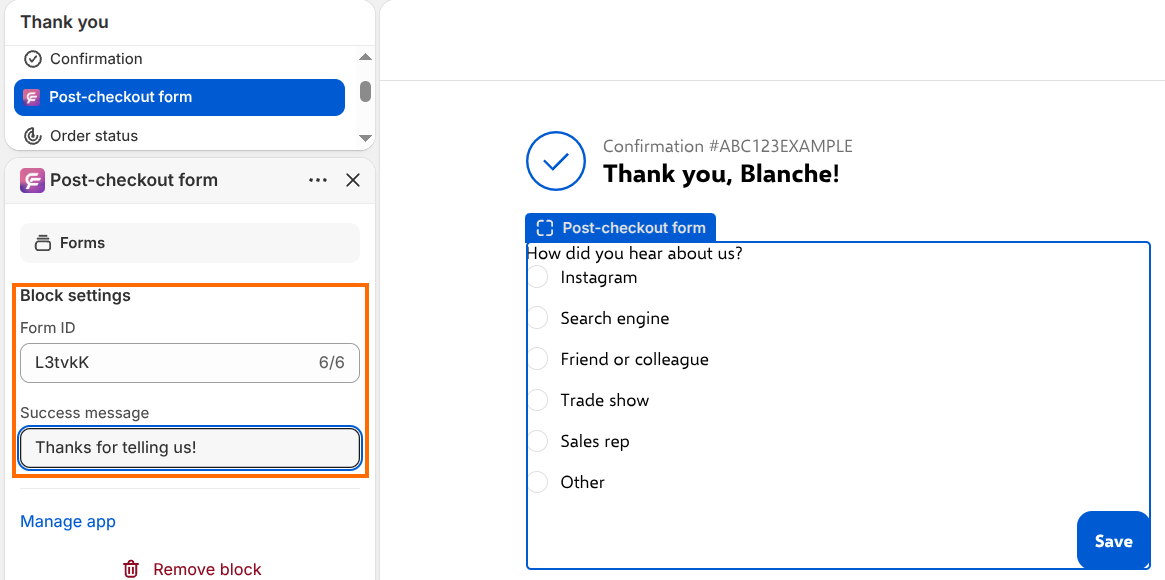
- Choose Thank you from the page menu at the top of the editor.
- Add the Post-checkout form block, then paste the form ID into Form ID.
- Click Save.
By default, buyers who have already answered won't see the survey again on later orders. You can change that in the form's settings. Account/Checkout forms need a Customer Fields plan that includes custom fields. For every setting and screenshot, see Add a post-purchase survey or form to the Thank you page in our help center.
Make sure your buyers are signed in
The survey shows only to customers who are signed in when they check out. On a wholesale store, that's usually the case already.
- On Shopify B2B, buyers check out as part of a company, so they're always signed in. We tested the survey on a Shopify B2B checkout, and it shows and saves the same way.
- If you run wholesale with customer tags or a locked storefront, turn on Require customers to sign in to their account before checkout in Settings > Checkout. Our post on Shopify B2B access control covers other ways to keep your wholesale store private.
If you're moving to Shopify B2B, Onboard B2B handles the step before the first order: the application form and approval that turn a new buyer into a company.
When a survey app is the better fit
Customer Fields is a good fit when your buyers sign in. It isn't the right tool for every store:
- Guests don't see the survey. If most of your orders come from guest checkouts, a dedicated post-purchase survey app will reach more customers.
- Answers save to the customer, not the order. You'll know a buyer's answer, but not which order they gave it on.
- The survey shows on the Thank you page only, not the Order status page that customers open later from their confirmation email.
Many wholesale stores have a direct-to-consumer side too. You can use both: a survey app for guest shoppers, and Customer Fields for your signed-in wholesale buyers.
Start with one question
Pick the one thing you most wish you knew about your wholesale buyers, and ask it on your Thank you page this week. Try Customer Fields to set up your first post-purchase survey.
Ask your wholesale buyers after checkout
Add a post-purchase survey to your Thank you page and keep every answer on the customer record.
